Log
A feed of short updates and micro blog posts.
The library section now also has a page for movies and TV shows, not just books. The dates are probably not perfect - the current list comes from an automated import from IMDB + VaultContentGen.
I’m planning to finally go back to using a full Linux desktop on my desktop PC, not just my laptop, this winter. I’ll probably go for Fedora KDE. I’ll probably install it on one of my 2 SSDs and keep the second one purely for Windows, specifically for Ableton Live.
I created a little web app at countdown.matkv.dev that shows countdowns to some dates.
Ghostty
I decided to give Ghostty another shot after my first try back when it came out. Initially I was kind of turned off by the fact that it’s based on GTK when running it on Linux so it doesn’t really look native on KDE.
But in the meantime they at least changed the titlebar to look nice on QT (KDE), and since I’m not really using the tab functionality directly in Ghostty since i use Zellij for that, it actually does everything I need it to do. I don’t really see any killer feature yet that would differentiate it from WezTerm for my personal usecase - but then again I’m not really using any advanced features in WezTerm either.
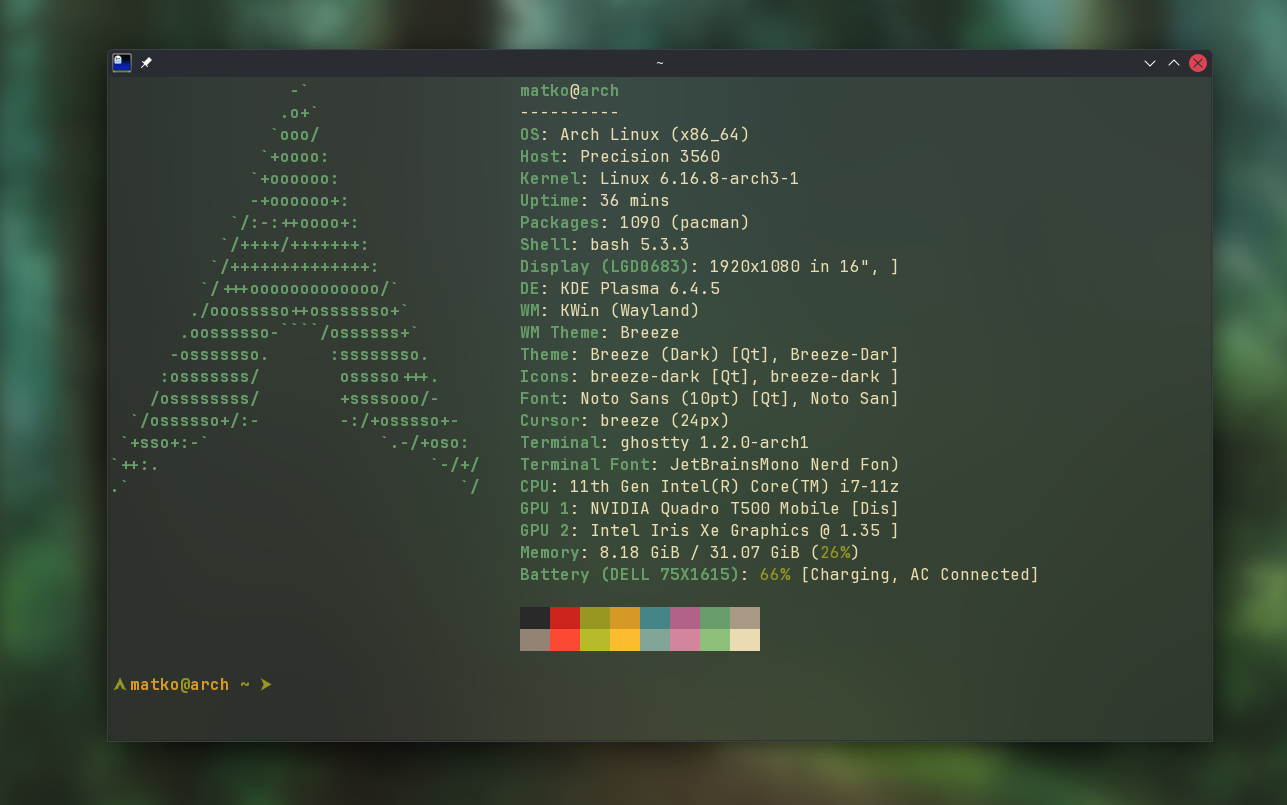
It’s possible that there’s some small issue with the column length for fastfetch, haven’t really checked that yet.
GitHub Copilot CLI
Another tool that I just started playing around with is GitHub Copilot CLI. I’ve already been using GitHub Copilot in VS Code and Visual Studio for like a year now, both with a personal subscription and at work, but this allows you to run it directly in the terminal.
It asks for permission to run any commands and you can set which working directories it has access to. It’s been pretty cool to just have it do some annoying or tedious tasks without needing to interact with it a lot. And since in most projects i track everything with Git anyways I’m not too worried about messing something up without being able to revert any changes.
Just earlier today I had it create a PWA for TeuxDeux on KDE even though Firefox doesn’t officially support it yet on Linux. It has been pretty cool to see it actually try and look up things like the icon for it online and it tried out a couple KDE specific commands to have the app show up in the application menu. Pretty impressive - I probably wouldn’t have bothered to make it work myself.
Overall I want to play around with it more but it seems like this opens up the usecases for Copilot quite a bit more for me.
Last week I bought two new VSTs during the summer sale of Native Instruments. Got some pretty good deals on them and I’m excited to play around with them and overall I’m trying to stick to my goal of practising music production more regularly.
Symphony Series Collection
A collection of a bunch of classical instruments - brass ensemble, brass solo, percussion, string ensemble, woodwinds ensemble and woodwinds solo.

Overall I’m pretty happy with how it sounds, the solo ones don’t blow me away but for the price I got it I can’t complain. This means I finally am also able to play around with writing some classical stuff since Ableton doesn’t offer a lot there out of the box.
The Grandeur Piano

A piano VST - I’m actually suprised how nice it sounds and it’s definitely an upgrade over the built in pianos in Ableton. Also has a bunch of nice presets and the common things like pedal noise and different rooms for reverb. You can even open or close the lid of the piano which affects the sound. And I’m going to be using this one also just for general piano practice, not exclusively for music production.
I’ve been trying out local LLMs for the first time this weekend. I installed Ollama locally on Windows and then downloaded two models just to play around with them: Deepseek R1 & LLama 2 Uncensored.
I wrote a little tutorial for myself that lets me download Ollama & the models to a different drive than the default location because they take up quite a bit of storage space. I also think it’s wild that you basically need as much free RAM as the size of the model in order to run it. So for the models with huge amounts of parameters you need some pretty insane setups.
Overall I think it’s pretty cool that you can run an LLM completely locally - basically without any restrictions on how often you can ask a question (in comparison to chatGPT for example), and also with faster response times - the LLama 2 model responds pretty much instantaneously for me. The Deepseek model seems to show it’s thinking process in greyed out text for quite a while before actually answering. So this could be a cool way to still have a local copilot even when I don’t have internet access. Fun to mess around with it in any case.
I read that these local models are supposed to be a bit less restricted & uncensored in comparison to the online models but from playing around with it that hasn’t really been the case for me. Maybe I need to try other models for that.
Maybe I’ll have an idea for a usecase for a local LLM in a software project, can’t think of anything specific yet though.
It is officially 2024, so I want to summarise my plans, goals and habits I want to build this year.
Short term
- Get back into a consistent workout routine
- Completely give up energy drinks and coffe-to-go, cut down on softdrinks
- Continue reading daily
- Build up a daily meditation habit
- Use my phone a lot less, have a more minimal setup on it
Long term
- Fix my sleeping schedule and be consistent with going to bed earlier
- Find a flat and move out
My last update about Neovim, I swear :D
So, I think I’ve finally managed to get a working setup for Neovim keybindings in VSCode going. In fact, I’m not only using the Neovim keybindings - I’m actually running Neovim inside VSCode.
I’ve been checking out this Neovim plugin for VSCode. Here Neovim is used for the actual code editing but you still have a normal Visual Studio Code experience. After a bit of tinkering - it seems that I now have a setup with which I can actually be productive while getting the best of both worlds.
For Neovim, I’m using LazyVim and its developer folke just recently put out an additional feature called extras, which also includes one for VSCode. This basically disables all the existing plugins except for some very basic ones that are useful for purely text editing and wouldn’t mess things up when using Neovim inside VSCode. It also sets some useful keybindings that make using VSCode feel more like Neovim.
So now I basically didn’t have to mess up my existing Neovim config at all, just needed to enable this extra and pretty much everything seems to work out of the box.
- all the usual vim keybindings work out of the box
- my personal keybindings from Neovim are now available when editing text in VSCode
- the plugin that let’s me jump around in a file comfortable (leap or flash, idk which one is used in the extra exactly), works out of the box which has been a big pain point when using VSCode without it (the color highlighting is still a bit weird but I’m sure I’ll find a way to fix it, it’s not a dealbreaker for now)
- the common vim commands are autofilled and shown in a little dialog withing VSCode
- SPC + SPC opens a fuzzy file picker (even though it can’t beat the speed of the file picker in Neovim)
This means I don’t need to unlearn/relearn any muscle memory when jumping between Neovim and VSCode + I get the benefit of having a easy and mostly automatic setup of debugging and testing for basically any language I want to use. I tried it out for a bit in a Go project and it all just seems to work. I’ll play around in a C# project too and see if everything seems fine there too.
I’ll eventually still go through all the settings in the VSCode plugin once again and check if I can improve some stuff but for now it seems like I’ve finally managed to find a setup that let’s me work comfortably. Super happy about that.
Maybe this means I’ll finally start working on actual projects again instead of fucking around with my editors all the time. Haha.
After messing around with Rust for quite a while, I’ve decided to put that on hold for the near future at least & shift my focus (back) to learning Go.
Even though I spent quite a lot of time trying to get comfortable in Rust, it has just been taking forever to get even remotely productive with it. Over the last couple of months I haven’t really touched Rust at all & I’ve just in general kind of lost the motivation for it (for now).
However, I’ve been playing around with Go recently and it think I want to give another shot - I’ve tried it already a couple years ago. Supposedly the learning curve isn’t steep with Go & I already have a couple ideas for things I might use it for. I’m just starting out with a little pet project that I can use as a practice project while learning - hugo-helper, which is supposed to be a little CLI tool that will help me automate some common tasks for this blog.
I’m also reading Learning Go by Jon Bodner and going through the examples in Go by Example to get a better overview of the language in general.
Overall I’m pretty excited to explore Go more :)
Why I’ve decided to give up on trying to use Neovim as my main IDE and how I’m planning to use it in the future instead.
I now haven’t worked on any pet projects as far as programming is concerned since early August - as you can see my commit graph on GitHub has been pretty empty recently.
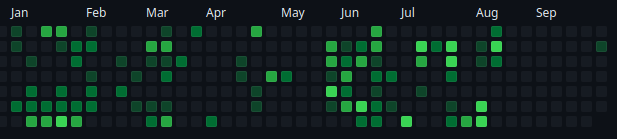
In part, this is due to the fact that over the summer I’m generally spending less time in front of the computer, but mainly it’s that I’ve just lost motivation to work on anything after getting a bit burnt out on trying to get a nicely working Neovim setup for Rust, Go & C# programming.
Especially the latter has been a pain to set up and at some point I noticed that I’m spending more time messing with my editor than actually writing code and improving my programming skills - so I just grew tired of it and stopped working on anything at all for several weeks.
LazyVim has been pretty great and while I was able to get most of the stuff that I needed to work up to like 80% or so, there were little things here and there that I couldn’t make work the way I wanted to. While I enjoy tinkering to a certain extent, at some point it just started to feel like I was spending too much time to achieve things in Neovim that I would get out of the box with other editors (Debugging being one of the bigger examples). I understand that other’s might have other usecases and needs and that Neovim might be a perfect fit for them, but I can now say that I’ve given Neovim (and Emacs previously) an honest shot, but for an actual IDE, it is just not for me.
So I’ve made the decision to give up on trying to use Neovim as my main IDE - I’ll be going back to VSCode - but instead I’m going to set it up to be just a fast & comfortable to use text editor, not specifically for writing code.
Things I loved about Neovim
I’m not going to stop using Neovim - there are a lot of things about it that I love and I’m definitely planning to keep using.
- Speed - I don’t think I need to explain that one
- Keybindings - I’ve gotten very used to the keybindings, I’m using them in Obsidian, I’m using them at work in Visual Studio with the VSVim extension and I’m planning to try & set them up in VSCode as well
- Customizabilty - I can change every little thing I want (this can however also lead to getting distracted and messing around with the editor instead of actually working)
- Plugins - some plugins have really improved my workflow, for example there’s an Obsidian plugin for Neovim that makes navigating a Obsidian vault really comfortable, or just small plugins like Zenmode that remove distractions when working on a single file + obviously the endless theming options in Neovim
- Fuzzy finder & grep - probably the feature I miss the most in a lot of other editors, it’s just so fast find files and navigate to them.
- Leap.nvim - a very intuitive (at least for me) way to jump to any part in a file super quickly, basically removes any need to use the mouse and is something I keep doing by mistake in other editors because it just feels right
- Lazy.nvim - very easy way to keep everything in Neovim up to date
What I want to use Neovim for
- not an IDE - I will be removing all the plugins and customization that were specific to getting some language working in Neovim
- a fast and as minimal as possible text editor for day to day notes, especially in Obsidian
- having clean and simple dotfiles and set it up as a long term text editor that will feel comfortable to use for years (so I need to really clean up my dotfiles for Neovim again)
What I want to use VSCode for
- my main IDE - get a nice set up for my most used languages going again, including snippets, debugging and everything else I expect from a modern IDE
- set up vim keybindings in VSCode - really put effort into making them work nicely (I need to check out several extentions and decide what I want to go for)
- overall look into what extensions are popular these days and decide if they make sense for me
- set up my dotfiles for VSCode again and maintain them
I just set up a second site that I’m planning to use for random programming projects. It runs on Blazor and can be found at code.matkv.dev
As I’ve already written before, I’ve been struggling to find a programming project to work on regularly. So I thought instead of starting random projects and abandoning them after a while, I could try and build a setup that will allow me to try out smaller projects and display them nicely somewhere public.
I’ve decided to build a site with Blazor - I’ve wanted to play around with that anyways and it allows me to use C# (I’ve been trying to use C# for private projects as well, not only for work). And hopefully I’ll be able to set it up in a way that will make it comfortable to showcase some other small projects on there.
I need to clean up a lot of the boilerplate code that was added with the default Blazor setup and just overall learn more about Blazor and then, as a start, I’ll move all the projects from https://matkv.dev/projects over there so I can kind of separate this blog from programming topics - I’ve been meaning to do that anyways.
All in all, I’m curious how it will work out and what I’ll be able to build!
I haven’t been active on this blog for more than 8 months. I’m trying to change that now, so here are some ideas on what direction I want to take this blog in the future and what kind of content I want to focus on.
So far this blog has been mostly (with some smaller exceptions) been focused on tech & programming related content. I’ve decided that I am going to try to write about a wider range of topics - especially when considering that in the last couple of months - due to not having a project I’m really interested in - I haven’t been writing a lot of code in my free time anyway so that’s not where my focus currently is. And I also just want to make it a habit to write more in general, especially longer posts and stay consistent with it. Some ideas for future content are:
- habits / self improvement
- movie reviews
- literature (apart from my book reviews)
- fitness
- just general writing practice
- music production & guitar/piano stuff Overall I just don’t want to feel limited about what I’m putting on here - I will however most likely go through some of the stuff I’ve already posted here (especially things like notes) and decide if I still really need that on this website instead of just moving them over to my Obsidian vault where I keep pretty much everything else that is text-based but not actual code. I have quite a lot of different interests & hobbies and this blog could be a nice way of sharing what I’m currently interested in. There are also some areas on this website that need general improvement or just a bit of tinkering. I need to add some book reviews for books I’ve read since the middle of last year & I’ve been also thinking of maybe trying out some sort of micro blog where I post small updates of what I’m up to every now and then. Maybe this could replace the “now” page that I’m currently using. I’ve been looking at a lot of the blogs/websites from this webring and have been getting a lot of inspiration for stuff I might want to add to this site. Since I don’t have any other real programming pet projects (other than continuing learning Rust occasionally), at least I can improve some stuff on here - hopefully somewhat regularly. This is a random thought, but I’ve also decided to try to keep my GitHub commits low on weekends - or at least try to avoid doing too much on the computer on weekends and if I still do something - I want to at least try focusing on non-software dev related topics. At least on weekends. I’m already looking at a screen for 8+ hours a day at work & pretty much every weekday evening as well. So maybe restricting myself (when it comes to programming) to only Monday to Friday could be an option. Obviously this is not a hard rule - just a general intention. So yeah, I’m basically just rambling now but I’ll try to actually stick to updating this blog more regularly!
I’ve been interested in personal knowledge base systems recently. After reading about several different ones, I’ve decided to give Obsidian a shot & try moving all my existing notes there & set up an Obsidian vault from scratch.
Obsidian is a personal knowledge base that is based on markdown files. This is one of the main reasons why I wanted to give it a shot. While the software itself isn’t open source, it at least doesn’t use a proprietary format that would keep me locked into their system if they ever decide to give up development on the app.
The whole idea of Obsidian is to create links between notes in order to connect them by topic - this can then also be shown in a pretty fancy graph.
From playing around with it a bit yesterday & today, I’m pretty impressed so far. It has a couple nice plugins + support for community plugins - for example I already have one installed for Git integration which lets me comfortably back up this whole vault to a private GitHub repository.
I’m still deciding how to set it up in general & I want to make sure to only add notes & content that are actually still relevant to me now. I could probably also use Obsidian as my main way to write the content for this website - Hugo also uses Markdown files for the main content. So I could basically mirror everything on here & just publish the content that I’d actually want to be publicly accessible.
I’m curious if I’ll actually stick to it and continue using it. I really like the idea of having all my notes in one place.
So far this blog has been mostly just about updates on this website but kind of want to also write about other topics. So I thought I’d write a recap on my chess progress over the last year and how I’m planning to work on improving my chess in the future.
Lichess to Chess.com & back to Lichess
When I started playing again, I played around 130 games or so on Lichess, but then decided to switch to Chess.com as my main site (in part because those tournaments were all played on that site). So roughly from September 2020 to April 2021, I played pretty much exclusively on Chess.com. I even bought the Diamond premium membership which gave me unlimited puzzles and unlimited computer analysis of my games. Overall I played 390 games on there, mostly Rapid & Blitz games. After a while I noticed that actually overall prefered the UI on Lichess & basically all the features on the Diamond memberchip on Chess.com (unlimited puzzles, unlimited analysis, puzzle rush/streak) were available on Lichess for free so I decided not to continue my premium membership on Chess.com and switch back to Lichess. Another thing that I love about Lichess is that it’s completely open source, has no paid features at all & is actually funded by a non-profit so they literally don’t need to try & monetize the features on the site. As far as I know pretty much all new changes on the Lichess GitHub page are now written in Rust - maybe if I improve my Rust skills I’ll be able to help out there sometime. That would at least be an open source project that I’m really passionate about.
My progress over the last year
On April 5th 2021 - right around the time when I switched back to Lichess, my ratings were:
- Rapid: 1029
- Blitz: 851
- Puzzles: 1202
- Bullet: 1029 (didn’t play Bullet for the first couple months) My ratings today, on 7th of May 2022 are:
- Rapid: 1637 (+603) - my currently highest Rapid rating ever
- Blitz: 1327 (+476) - almost my highest ever (1330)
- Puzzles: 1773 (+571)
- Bullet: 1077 (+48) So in Rapid & Blitz I have been steadily making progress and improving my rating. I have the most games in Rapid (495 rated games), then Blitz (365 rated games) and then Bullet (210 rated games). Overall I’m putting my focus on Rapid chess, playing both the 10+5 & the 15+10 time controls. With Rapid chess I at least feel like my wins are actually earned because with the increment, games hardly ever end in flagging my opponent & winning on time. Recently I’ve however also enjoyed Bullet chess, but this is mostly just for the adrenaline of the quick time control ( I play 2+1) - I know that playing Bullet won’t really help me to improve a lot.
What I’m working on currently
While I have been improving overall, I feel like I’m often getting out of the opening in a worse position than my opponent because I’m mostly winging it and just playing moves that look good & develop my pieces. This is why I’ve decided to start actually working on my openings. I want to find at least one opening for white and one for black on which I can focus and really learn well. My notes while learning the openings can be found here. Unrelated, but today I found this fun website made by a fan of one of my favorite chess streamers/youtubers, Eric Rosen that analyzes all your games on Lichess and gives you a score based on how many fancy types of checkmates you managed to do, stalemate tricks, weird pawn structures and just generally fun achievements. It’s called Rosen Score. I got 27 “Rosen trophies” there :D
I changed the domain for this website! It can now be reached at matkv.dev. Previously it was my full name + “.com” but I decided to change it because I feel more comfortable sharing this domain on various sites without having to actually reveal my full name.
However, my old domain still works & now just redirects to this new one - I think I’ll keep paying for it just so that nobody else can steal it from me :D And it’s also nice to have a fairly professional looking email address that I can use this way.
The setup itself was a breeze, I was able to basically just copy the settings from my old domain and set them for the new one. So far everything works as expected.
A fun fact that I learned, when using a domain with the .dev top level domain, you apparently have to use https & a SSL certificate. But this was pretty easy to set up with my domain provider. All in all, I’m happy with the result!
Now that my old Raspberry Pi isn’t used anymore as a 24/7 torrent box for my … Linux ISOs, here are some ideas about what I could use for now.
Most likely I’ll do a fresh install of Manjaro ARM again because it was actually very comfortable to use for the torrent box use case & I’m very used to Manjaro anyways because I use it as my main OS on my laptop.
- mirror of my GitHub profile / local git server
- a syncthing device with local harddrive
- Kodi / Plex client (but I wouldn’t really be able to watch 4K content)
I started learning Rust back in December 2021. Here is a quick summary of my current progress at learning Rust.
The main reason why I started learning Rust was that I wanted to learn a language that is a bit more low-level than the languages that I had been using so far. The first resource that I used was the official Rust book. Right now I’m at the 4th chapter - “Understanding Ownership”. This is the 4th out of 21 chapters, so I definitely still have a lot to learn :D I also started doing the Rustlings exercises to get a bit more comfortable with actually using the syntax. In order to not exclusively work on theory, I also just started my first actual Rust project. Basically I’m planning to rewrite my little tray bar program that plays a sound to wake up my studio monitor speakers in Rust. Currently I have separate versions for Linux & Windows so a cross-platform Rust solution might be a nice little beginner project, escpecially considering the program literally just plays a sound, nothing more.
The biggest challenge here so far has been getting the gtk dependencies that are needed to actually create the system tray icon to work. The repository for this little project can be found here. Overall, I think Rust is definitely interesting, the syntax can be a bit weird at times but I’m sure that’s something I’ll get used to.
After struggling to find ideas for side projects & not really being motivated about any of my current pet projects I have decided to try learning Rust.
Initially I was torn between getting back into Go (which I used very briefly about 2 years ago) and Rust but after reading up on both languages and looking at what kind of projects each language is generally used for, I decided to give Rust a shot. Considering that I use C# at work, I feel like learning Rust would be more benefitial to improving my skills as a programmer in general than Go. I never really used a language that is somewhat low level so this will definitely be a new experience for me. To be honest I’m pretty clueless about it right now but I’m looking forward to trying it out. Who knows if I’ll actually stick with it :D Today I will just set up the dev environment, the tooling seems to be pretty nice & there’s an official VSCode extension. I’m not sure where (or if) I’ll document the process and write notes in general.
After trying out NeoVim and LunarVim, I’ve decided to also give Doom Emacs a try. I’m still unsure which editor fits my needs best so I’ll just play around with all of them to help me build an opinion.
I think I’ll document the process in a separate file again, but not on this website here. Not entirely sure where yet.
I decided to give up on trying to get a productive NeoVim config set up anytime soon - I will instead try out LunarVim.
This is an IDE layer for Neovim that supposedly already has most of things needed for development with Neovim/Lunarvim configured by default. I guess I’ll just install that and then change the config where needed. I won’t be documenting the config process on here though, I think I’ll just add it to my README.md in the dotfiles repository..
I decided to try out Neovim so I will use this blog post to document the setup process. My main goals are:
- Automate the setup process as much as possible so that I can easily reuse my configuration on a different computer.
- Setup an built-in file browser and a nice theme (maybe the palenight theme)
- Setup code completion for my most used languages, maybe try C# first
TO-DO
- Install some plugin to show a file tree on the left side
Introduction
After installing Neovim (on Manjaro Linux: sudo pacman -S neovim) I can start it with the command nvim.
I created an init.lua file in my dotfiles repository and symlinked it to the location of the actual Neovim config file:
ln -s ~/dotfiles/nvim/init.lua ~/.config/nvim/init.lua
This way I should be able to change my config and still be able to have some version control because it is in my dotfiles repository.
init.lua
We can configure Neovim using the init.lua file. For example, we can enable line numbers by adding this line to the config file:
vim.wo.number = true
Option levels
There are several option levels:
vim.o.{option}: global optionsvim.bo.{option}: buffer-local optionsvim.wo.{option}: window-local options Each option is specific to a level; for example - thenumberoption is only available in thewindow-localoptions.
Basic usage
I can open a file by just typing nvim filename in the console. To move around in the file I can use the h,j,k,l keys or just the arrow keys. :q (shift+colon and then q) to close a file :w to save it.
It is also possible to open a folder with nvim. Then the files and folders inside it will be shown as a list and I can enter the folders or files with the enter key.
With shift + w I can jump to the next word, with a upper case W I can jump to the next word delimited by spaces. By using the same combination with e instead, we can jump to the end of each word. And shift + b jumps back one word instead of forward.
Editing text
By hitting the i key, we enter insert mode. Now we can actually add and change text. With the command :u we can undo the last change we made.
Splitting the window
I can split the current window verticall by using the :vs command. This opens another vertical window to the right. The :split command would open one below. In order to move around between all open windows we can use the :W w command (colon W and then w). This cycles through all currently open windows. To close the currently open window I can use the normal :q command.
If I have the mouse enabled in the settings (init.lua), I can also just click a specific window to focus it and resize the windows by dragging with the mouse.
Using a plugin manager - packer
I created a new folder in my nvim folder called “lua” and a “plugins” folder in the new lua folder and a new file called init.lua. (I actually created it in my dotfiles repo and symlinked it to the actual config folder again).
So after creating the folder and file in the actual config folder I ran the command:
ln -s -f ~/dotfiles/nvim/lua/plugins/init.lua ~/.config/nvim/lua/plugins/init.lua
Now the file in my dotfiles repository is symlinked to the actual config file again. Then I cloned the repository of the packer plugin manager:
git clone --depth 1 https://github.com/wbthomason/packer.nvim\
 ~/.local/share/nvim/site/pack/packer/start/packer.nvim
Now we add the first plugin to the init.lua file in the plugins directory:
return require('packer').startup(function()
    -- Packer can manage itself
    use 'wbthomason/packer.nvim'
end)
I think this actually means that the plugin manager is basically adding itself as a plugin too. Now we have to reference this plugins folder in the actual init.lua file in the “root” directory (~/.config/nvim/init.lua)
In the initi.lua file:
require('plugins')
Now we open the init.lua file (in the actual config folder) in nvim and run the command (shift + colon) PackerInstall.
Installing a color scheme
In the plugins folder we add a reference to the github repository that holds the color scheme. In my case I will be using the “Nord” color scheme:
return require('packer').startup(function()
    -- Packer can manage itself
    use 'wbthomason/packer.nvim'

    -- Nord color scheme
    use 'shaunsingh/nord.nvim'
end)
And then we run PackerInstall again. Then in the normal init.lua file we need to set the color scheme:
vim.cmd('colorscheme nord')
After saving the file and opening nvim again, we should now see the new color scheme :)
Adding better syntax highlighting using treesitter
In the init.vim file in the plugins folder we add
    use {
        'nvim-treesitter/nvim-treesitter',
        run = ':TSUpdate'
    }
And then we install the treesitter plugin using the PackerSync command.
Adding treesitter support for all maintained languages
We add a reference to the treesitter config in the normal lua.init:
require('treesitter-config')
This basically means that the init.lua file will require any plugins/settings that are in init.lua files in the directories that are specified this way.
Then we create this treesitter-config folder in the lua folder. And in this new folder we create a new init.lua file. Now we can basically enable all languages that are “maintained” and supported by treesitter:
require'nvim-treesitter.configs'.setup {
  ensure_installed = "maintained",
  highlight = {
    enable = true,              -- false will disable the whole extension
    additional_vim_regex_highlighting = false,
  },
}
The next time we open nvim, it will automatically download and install all languages that are supported. Now the syntax highlighting should look a lot better when opening code.
Figuring out which option level a setting belongs to
In order to set settings in the init.lua file using lua syntax, we need to specify the option level, for example vim.wo.number'. In order to figure out which option level a specific setting belongs to, we can use the help command. For exmample, figuring out where the cursorline` setting belongs to:
:help cursorline
Now the settings page shows that cursorline is of type boolean and that it is local to window. This means we can set it using vim.wo.cursorline = true.
This is my first blog post. I am not sure what exactly I will be using this blog for, but for now my main goal is to improve the design and functionality of this website.
This is also my first time setting up a custom domain so I am just learning and trying out stuff.